web hobs private limited offers several Add-ons along with an Order. These can be purchased and managed from the Order Information view for the Order.
-
Add-ons currently offered are:
-
Dedicated IP
-
cPanel License
-
WHMCS
-
VPS specific Add-ons:
-
Plesk 10-Domain License
-
Plesk 100-Domain License
-
Plesk Unlimited Domain License
-
-
Dedicated Server and Managed Server specific Add-ons:
-
50GB SAN Storage
-
100GB SAN Storage
-
200GB SAN Storage
-
300GB SAN Storage
-
500GB SAN Storage
-
-
-
VPS 1 and VPS 2 Plans will support only Dedicated IP, Plesk 10-Domain License, and WHMCS Add-ons.
-
VPS 3 Plan onwards will support all Add-ons.
-
Only 1 Plesk license (among Plesk 10-Domain License, Plesk 100-Domain License, and Plesk Unlimited Domain License) can be installed on a VPS.
-
cPanel & Plesk licenses cannot be installed on a VPS simultaneously since these are conflicting Add-ons.
You can add or delete add-ons to your package
Step 1: Log in to your control panel. Learn how
Step 2: Navigate to the Order View.
Search the domain name for which you have purchased the server order and select the domain to view the order information.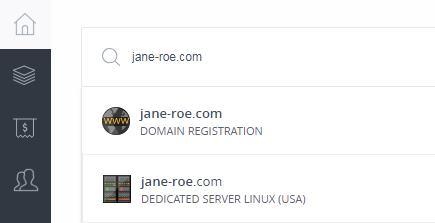

Step 3: Add/Delete add-ons.
i. Add
-
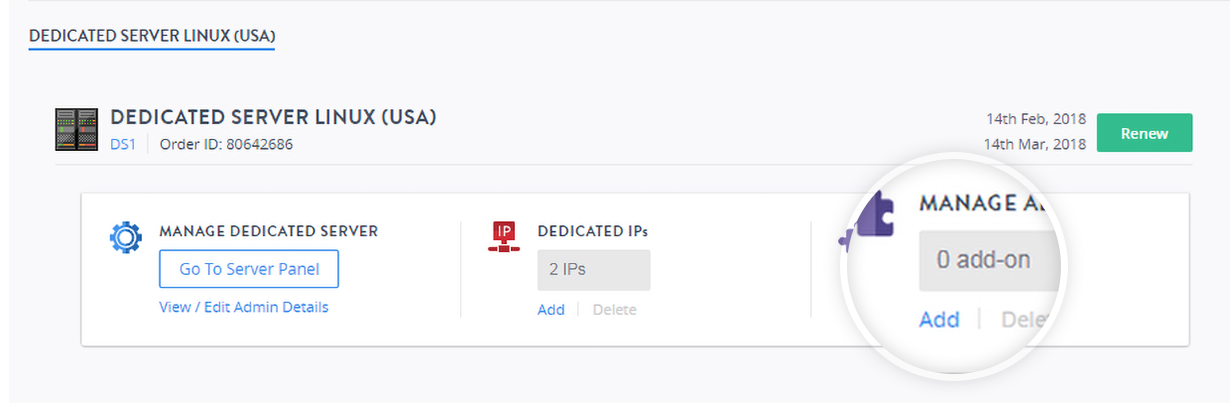
In the MANAGE ADD-ONS section, click Add.
-
Select the tab for the add-on type you require and choose the add-on you want to purchase.
NoteYou cannot specify the duration of an add-on. The duration will the same as that of the Order.
-
Proceed to pay for the add-on.
ii. Delete
-
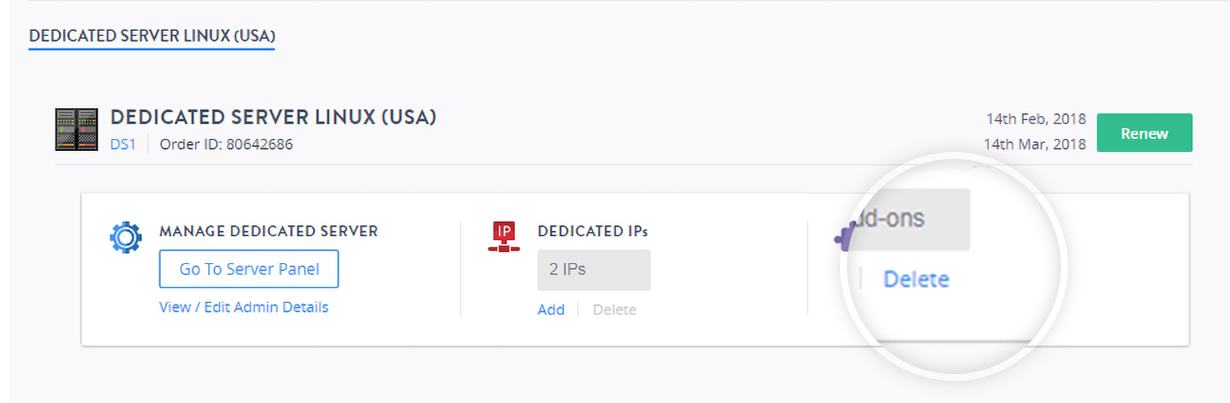
In the MANAGE ADD-ONS section, click Delete.
-
Click the
 icon next to the add-on that you want to delete.Note
Before deleting an add-on, you need to ensure that the functionality offered by that add-on is no longer in use on your server.
-
Confirm the deletion action by clicking YES, DELETE.